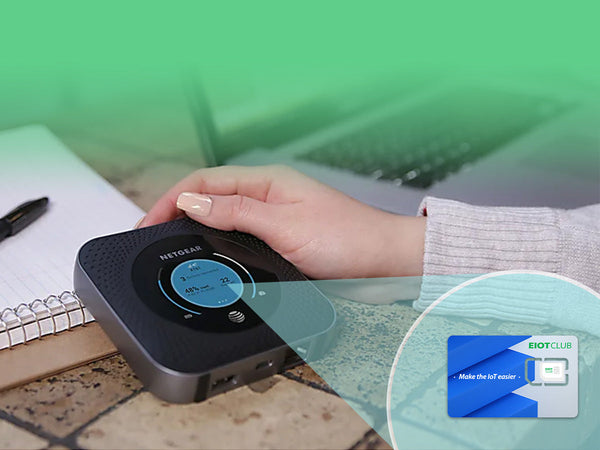
A portable hotspot can be a lifesaver. It keeps remote workers online at coffee shops with unreliable Wi-Fi, gives students a connection in apartments without broadband, and lets travelers stay productive on the road across the United States. When it works, it feels effortless. When it does not, it tends to fail at the worst possible time, like in the middle of a client call or an online exam.
Most hotspot problems are not caused by the device itself. They come from a handful of avoidable mistakes around the SIM card, the plan, and everyday habits. Data runs out faster than expected, speeds crawl for no clear reason, or the connection simply refuses to start.
This article covers the most common mistakes people make with mobile hotspots and explains how to fix each one. Whether you rely on a hotspot every day or keep one as a backup, avoiding these pitfalls will help you get a steadier connection and make your data last through the month.
Mistake One: Treating a Phone Plan Like a Hotspot Plan
Many people pull the SIM from an old phone and drop it into a hotspot, expecting it to work the same way. Sometimes it connects, but speeds are painfully slow or data stops after a small allowance. That happens because many phone plans limit tethering and hotspot usage, even when they advertise generous data for the phone itself.
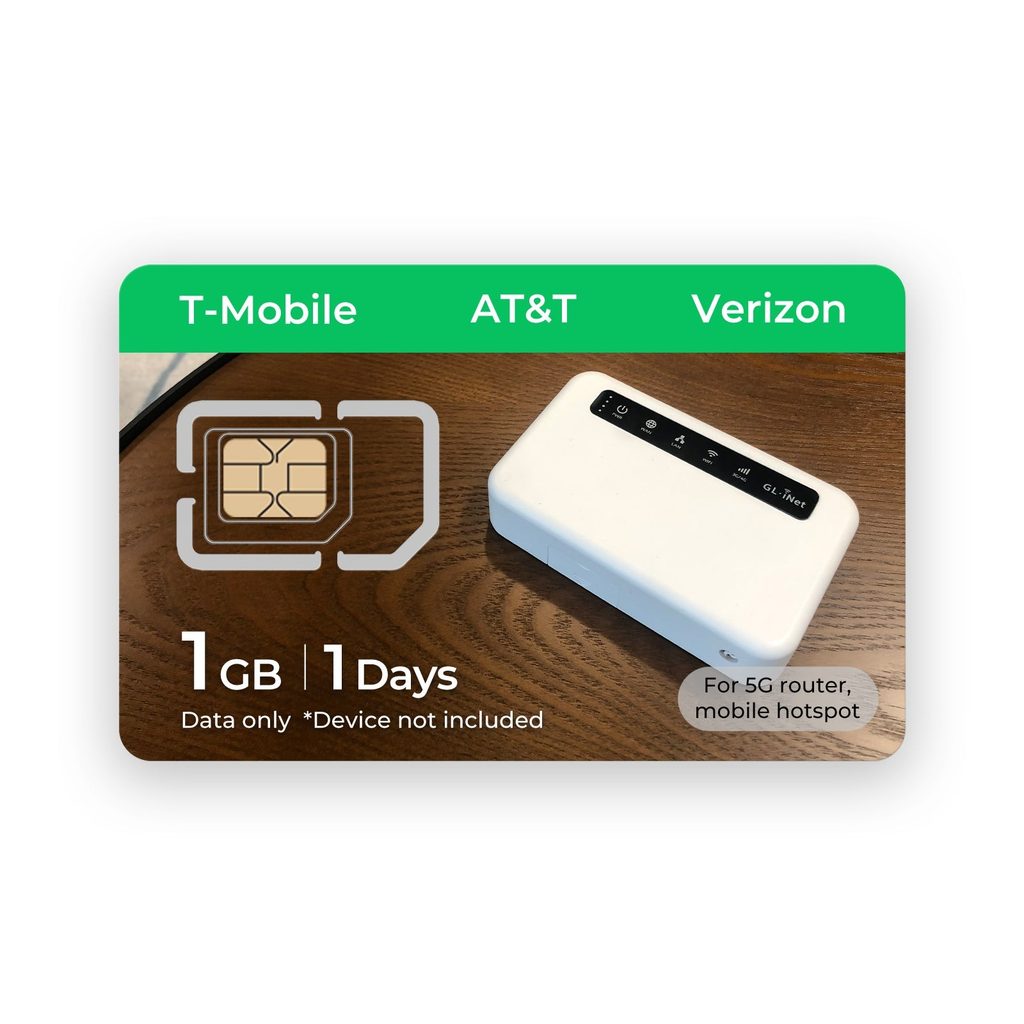
A dedicated hotspot sim card is designed for the way hotspots are actually used: several laptops and tablets sharing one connection for hours at a time. The plan is built around data, not calls and texts, so you are not paying for features you never touch. Before you buy anything, read the plan terms carefully and look for any mention of tethering limits, hotspot caps, or reduced speeds after a threshold. If those restrictions exist, the plan is not really meant for a hotspot.
Mistake Two: Ignoring Device and Network Compatibility
Not every hotspot works with every network. Devices purchased through a carrier are often locked, meaning they will reject SIM cards from other providers. Others may support only certain network bands, which can leave you with weak or no signal even in areas that show strong coverage on a map.
Check three things before you commit. First, confirm the hotspot is unlocked. Second, compare the bands your hotspot supports with those used by the network behind your SIM. Third, verify the SIM size fits your device. Taking ten minutes to confirm these details saves days of troubleshooting and return shipping later. If the hotspot supports newer network generations, make sure the plan does too, otherwise you will not see the speed improvements you paid for in the hardware.
Mistake Three: Letting Background Activity Eat Your Data
Laptops treat any Wi-Fi network as unlimited unless told otherwise. The moment you connect to a hotspot, your computer may start downloading system updates, syncing cloud folders, and backing up photos. These background tasks can consume a surprising share of a plan in a single afternoon.
A few settings changes make a big difference:
- Mark the hotspot network as a metered connection in your laptop’s network settings.
- Pause automatic cloud sync for large folders while on the hotspot.
- Postpone operating system and app updates until you are back on unlimited Wi-Fi.
- Lower default video quality on streaming and video call apps.
Check your data usage in the hotspot’s app or admin page every few days during the first month. Once you understand your real consumption, you can choose a plan that fits instead of guessing.
Mistake Four: Poor Placement and Overheating
A hotspot tucked inside a bag or buried under papers will struggle to hold a signal. Cellular reception improves near windows and away from metal surfaces, so moving the device just a few feet can raise speeds noticeably. In a car, placing it near a window rather than in the glove box helps too.
Heat is the other silent problem. Hotspots work hard when several devices are connected, and they warm up. When they get too hot, many throttle performance or shut down to protect the battery. Keep the device in a ventilated spot, avoid leaving it in direct sunlight, and consider running it from a charger rather than battery alone during long sessions. If your hotspot supports it, removing the battery and running on direct power for all-day stationary use can also reduce heat and extend battery life.
Mistake Five: Neglecting Basic Security
A hotspot with a weak or default password is an open invitation. Anyone nearby could connect, use your data, and potentially see traffic from your devices. This is especially risky in shared spaces like airports, dorms, and co-working offices.
Change the default Wi-Fi password to something long and unique, and change the admin password for the device settings as well. Use the strongest encryption option your hotspot offers. Rename the network so it does not reveal the device model, and review the list of connected devices occasionally. If you spot anything you do not recognize, change the password immediately.
Mistake Six: Forgetting About Renewal and Top-Up Timing
Even a well-chosen plan can let you down if it expires at the wrong moment. Many prepaid data plans run on a fixed cycle, and once the allowance or the validity period ends, the hotspot simply stops passing traffic. Users often discover this mid-task, with no easy way to buy more data because the connection they would use to do so is the one that just stopped working.
The fix is to know your renewal date and treat it like any other bill. Write it in your calendar, and set a reminder a few days ahead. If your provider offers automatic renewal, decide whether it suits you. Automatic renewal prevents surprise outages, while manual top-ups give you more control over spending during months when you travel less. Either approach works, as long as it is a deliberate choice rather than an accident.
It also helps to keep a backup way to reach your provider’s account page, such as your phone’s own data or a nearby Wi-Fi network, so you can add data quickly if you run out early. Some people keep a small emergency plan in reserve for exactly this situation.
Mistake Seven: Skipping Simple Troubleshooting
When a hotspot stops working, the instinct is often to assume the SIM is faulty and order a replacement. In most cases, the problem is much simpler. Before contacting support, restart the hotspot and the connected laptop, check that the data allowance has not run out, and confirm the APN settings still match what your provider supplied. Removing the SIM, checking it for dust, and reseating it firmly can also resolve connection drops. If the hotspot shows full signal but no internet, the APN is the most likely culprit. Working through these checks in order usually gets you back online in minutes.
A Better Setup Routine From Day One
Most of these mistakes disappear with a simple routine when you first set up the hotspot. Start by confirming the device is unlocked and compatible with the network. Choose a data plan designed for hotspot use, ideally one that is flexible enough to change as you learn your usage. Providers that focus on data SIMs for connected devices, including Eiotclub, tend to offer plans shaped around this kind of usage rather than bundling voice minutes you do not need.
After inserting the SIM, secure the network with new passwords, mark it as metered on every laptop, and test speeds in the rooms or locations where you will use it most. Keep a charger nearby and place the device where it can breathe. Finally, set a reminder to check usage weekly for the first month. With these habits in place, your hotspot becomes a dependable tool rather than a recurring source of frustration.
Smarter Hotspot Habits Start With the Right SIM
Mobile hotspots are only as reliable as the choices behind them. Using a phone plan in place of a proper data plan, skipping compatibility checks, and letting background apps run unchecked are the most common reasons people burn through data or struggle with slow speeds. Poor placement, overheating, and weak security add problems that are easy to prevent.
The fixes are simple. Pick a SIM and plan designed for hotspot use, confirm your device is unlocked and supports the right bands, and take control of what your laptop does in the background. Keep the device cool and near a window, and lock down the network with strong passwords. Each of these steps takes only a few minutes, and together they turn a hotspot into a steady connection you can trust for work, study, and travel.
